![Logo (transparent background, red emblem, red text, tagline NOT included) (PRIVATE).png]](https://support.postworks.co.uk/hs-fs/hubfs/Logo%20(transparent%20background%2c%20red%20emblem%2c%20red%20text%2c%20tagline%20NOT%20included)%20(PRIVATE).png?height=40&name=Logo%20(transparent%20background%2c%20red%20emblem%2c%20red%20text%2c%20tagline%20NOT%20included)%20(PRIVATE).png)
Before You Start
To create a Teambox, you’ll first need to:
-
Add users to your organisation
-
Create a Team with those users
👉 If you haven’t done this yet, follow our Add a Team Guide first.
Create a Teambox
-
Go to the Send Section
From the Portal landing page, click “Send” in the left-hand menu.
Then click “Create new”.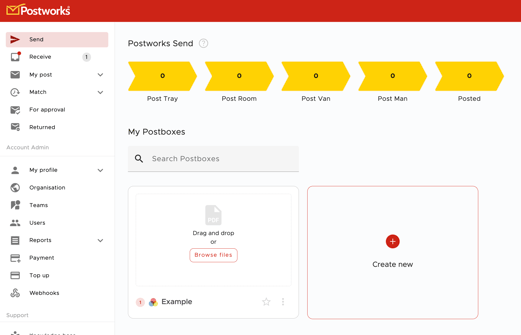
-
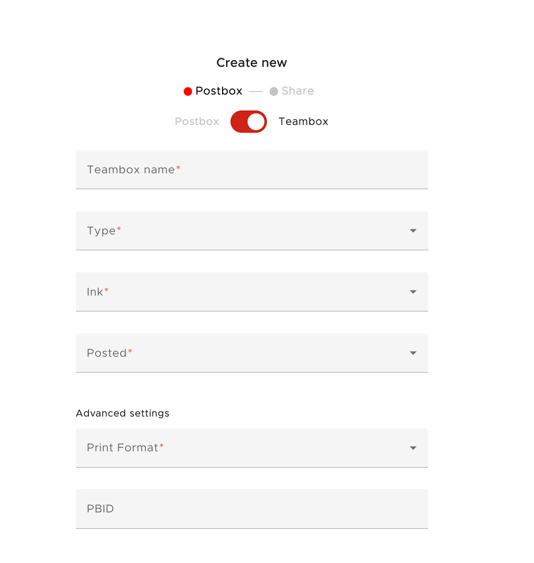
Toggle to Teambox
In the Create new window, toggle the option from Postbox to Teambox.
-
Fill Out the Teambox Details
Enter all the details as you would for a normal Postbox:
-
Name
-
Postage settings
-
Any other required info
Then click “Next” to continue.
-
-
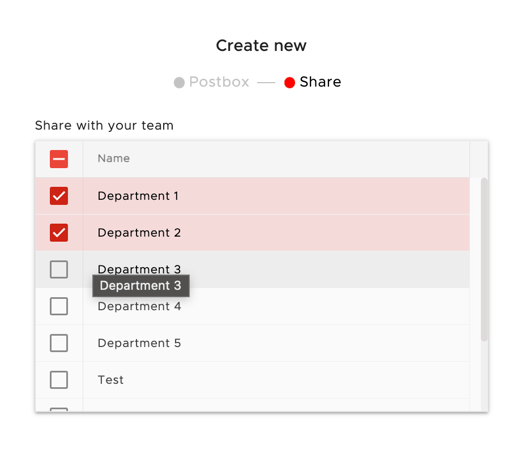
Assign Teams to the Teambox
You’ll now be prompted to select which Teams you want to assign to this Teambox.
✅ Tick the checkboxes next to the relevant teams.
-
Finalise Creation
Click “Create” to complete the setup.
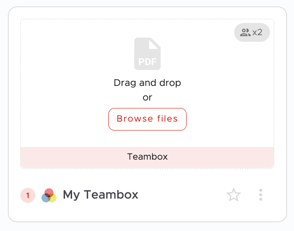
Your Teambox will now:
-
Appear alongside your other Postboxes
-
Be marked with a Teambox icon for easy identification
-
Be accessible to all users in the assigned teams based on their permissions
-